scripts-control
A multiple scripts pattern player for toys
Project maintained by Glavi0us Hosted on GitHub Pages — Theme by mattgraham
Script Control
➡️➡️➡️Link to the web app
:warning: You need to download and use Intiface Central to connect your devices through Bluetooth.
Quick tour
This application allows users to create lists of tracks (scripts or patterns) and easily switch between them with a simple click or a key press, without latency or the need to reload data.
It is also possible to play a video with a synchronized script and change the played track(s) on demand. This way, you can switch to a more dynamic script when the video’s action is too calm, or opt for a calmer list when it becomes too intense, or simply delay the climax.
Furthermore, each list can be configured to play tracks randomly, with modification settings to make them more dynamic and less repetitive.
Here is a simple showcase:
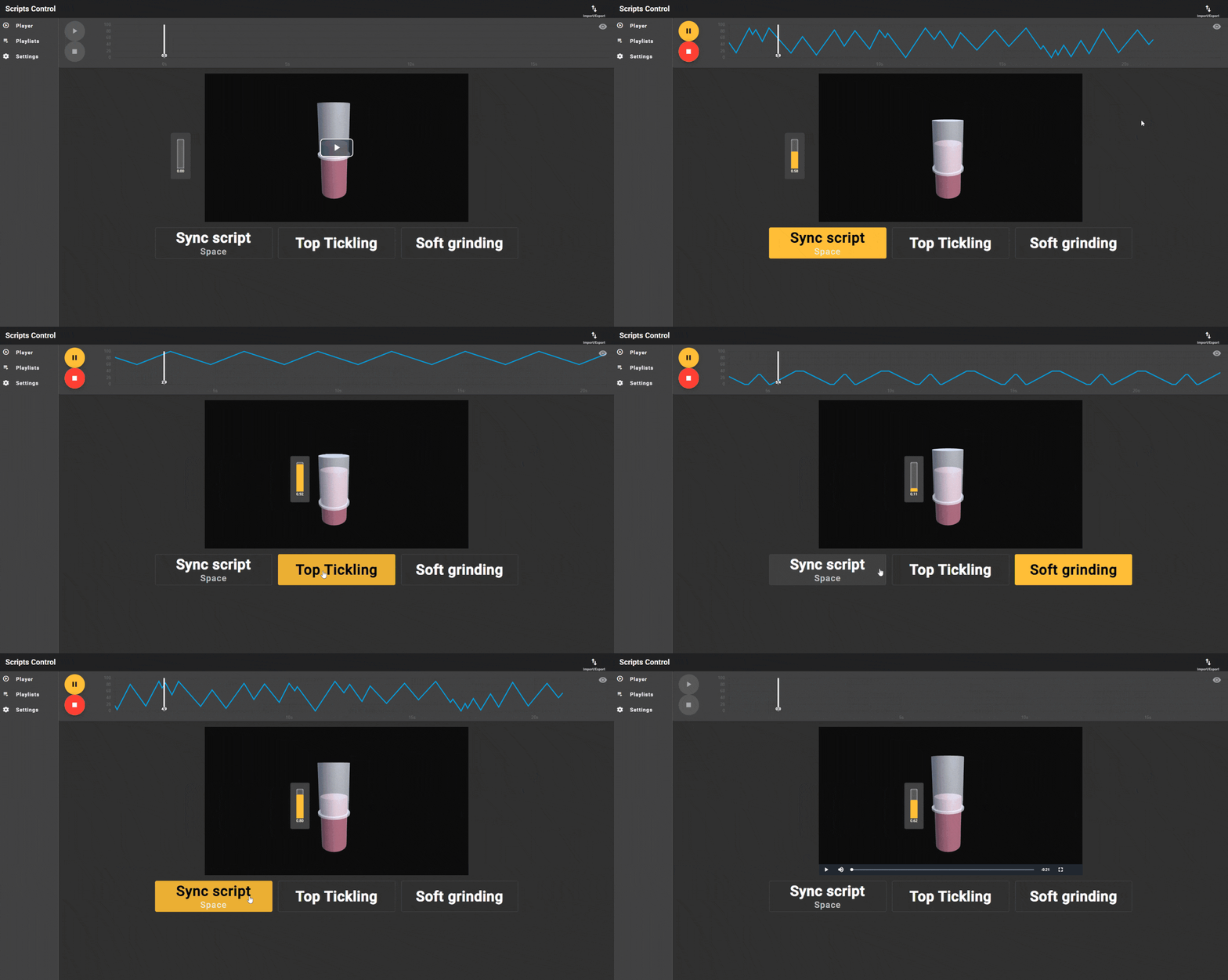
As you can see, you can change from the synced script to any non synced. The top chart gives you a preview of the currently playing script, and the yellow bar simulates a stroker.
Limitation
- For now, the application only accepts file extensions
.funscript,.scriptscontrol, and was tested with The Handy. - You have to use Intiface Central to connect your devices.
Even though this documentation talks about mutliple devices, I don’t have any other devices than The Handy to test with, but it should work with any one-axis stroker device.
- Because of Bluetooth latency, fast scripts can have unexpected behavior.
- This app is not designed to render properly on mobile.
How to connect a device
From Intiface Central
- Download and then install Intiface Central.
- Start Intiface Server.
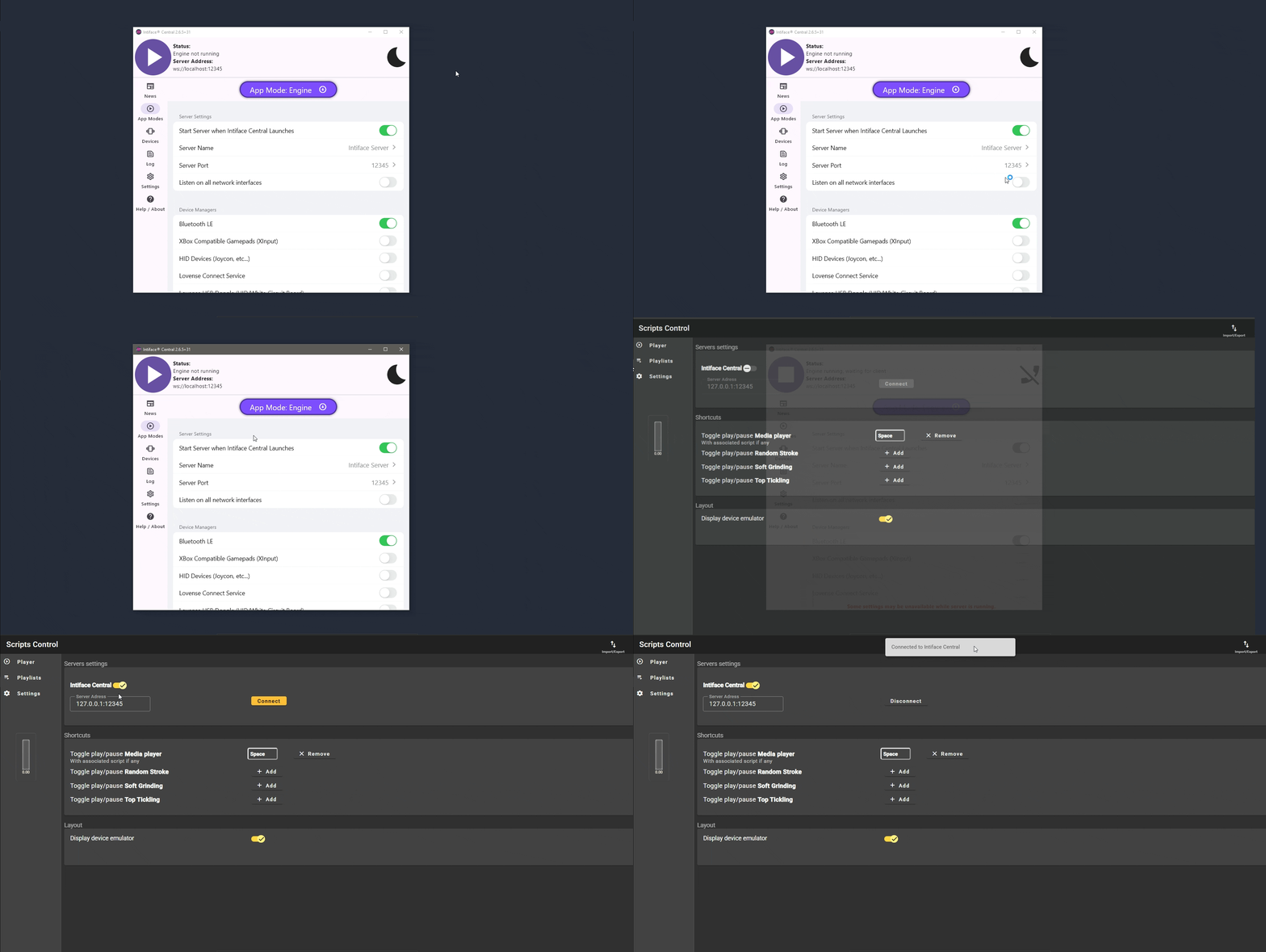
- Start the Intiface application, then go to AppMode to check server configurations. The default configuration will be
ws://localhost:12345, so Script Control is configured with the same default. - Run the server, then go to Script Control.
- Configure Script Control by enabling the Intiface connection with the server address, then click to Connect through Settings.
When you’re done, a successful connection message should appear.
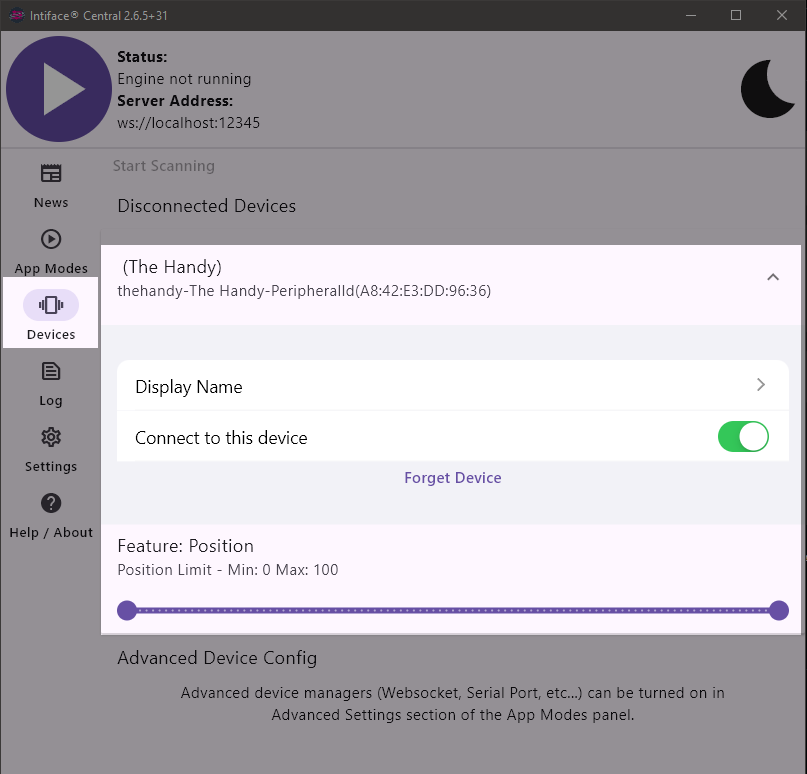
After that, any devices connected via Bluetooth to your desktop should be detected soon and visible in Intiface Central > Devices:
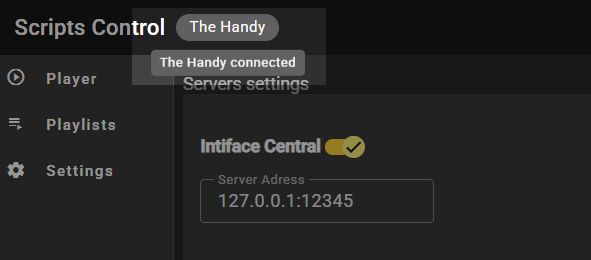
But also on the top bar of ScriptsControl.
Import script files
Only .funscript file format is accepted now :eyes:
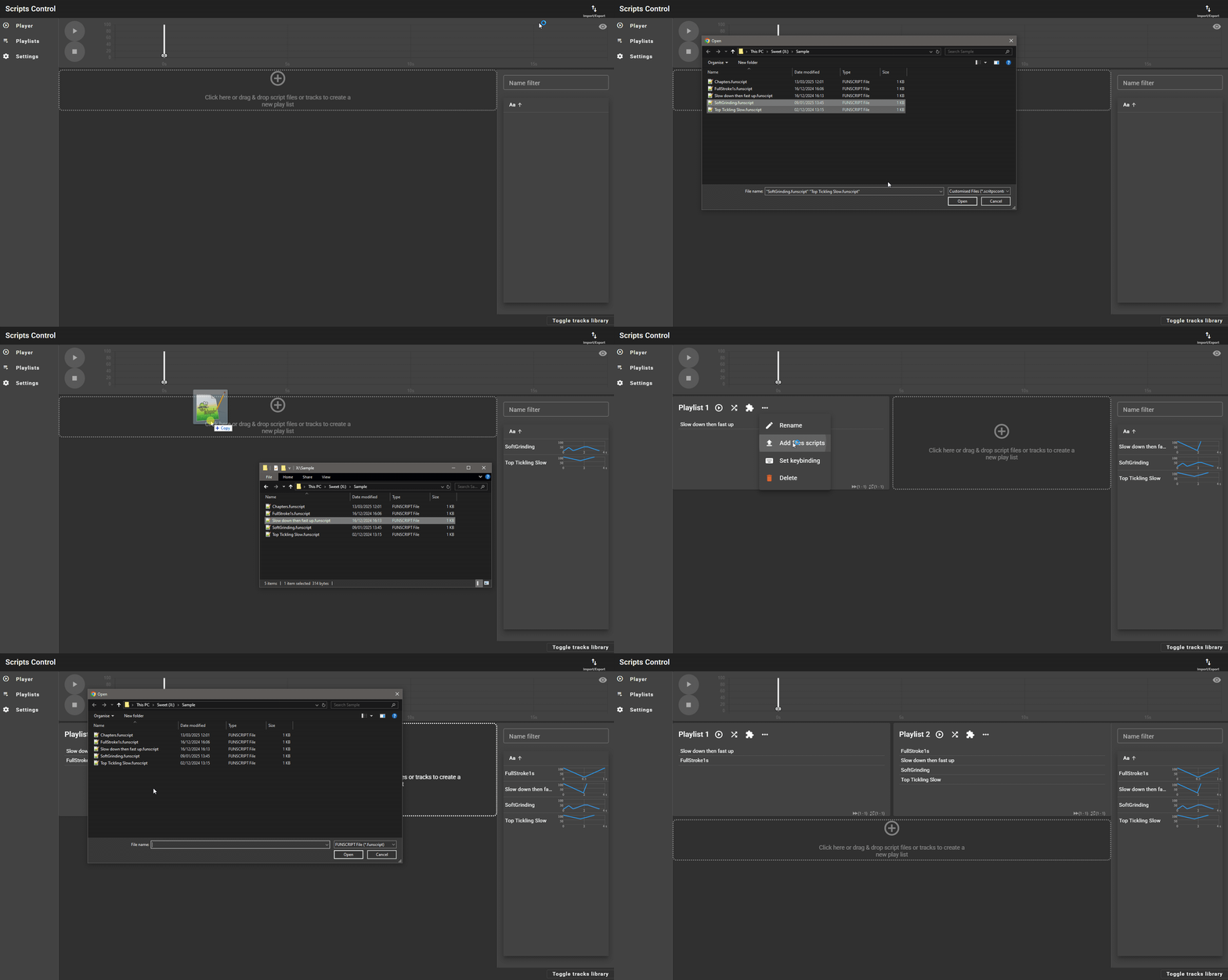
You can easily import .funscript files by any of the following options:
- The Import/export menu from the top right
- Drop files directly into the new playlist area
- From the menu of an existing playlist
Chaptered scripts
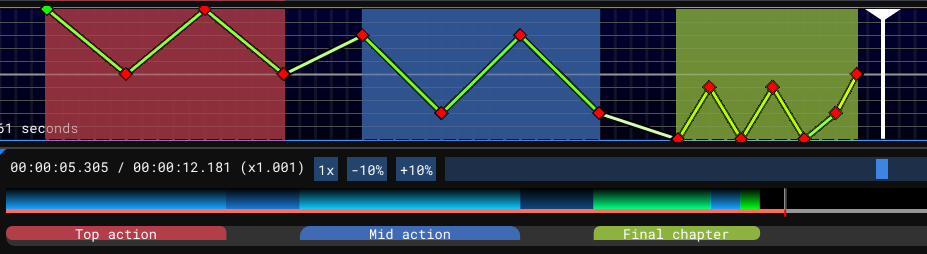
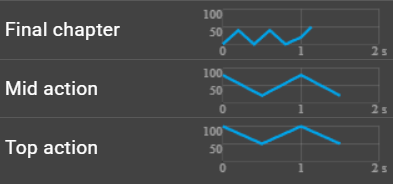
If the script file contains chapters, every chapter will be automatically imported as a simple track. In that way, patterns creators can create multiple patterns within the same script file :muscle:
For example, this script (created with OpenFunscripter) contains 3 chapters as patterns:
OpenFunscripter view | Imported chapters
:—————————————–:|:————————-:
 |
| 
Playlists
Playlists can be managed from the Playlist page.
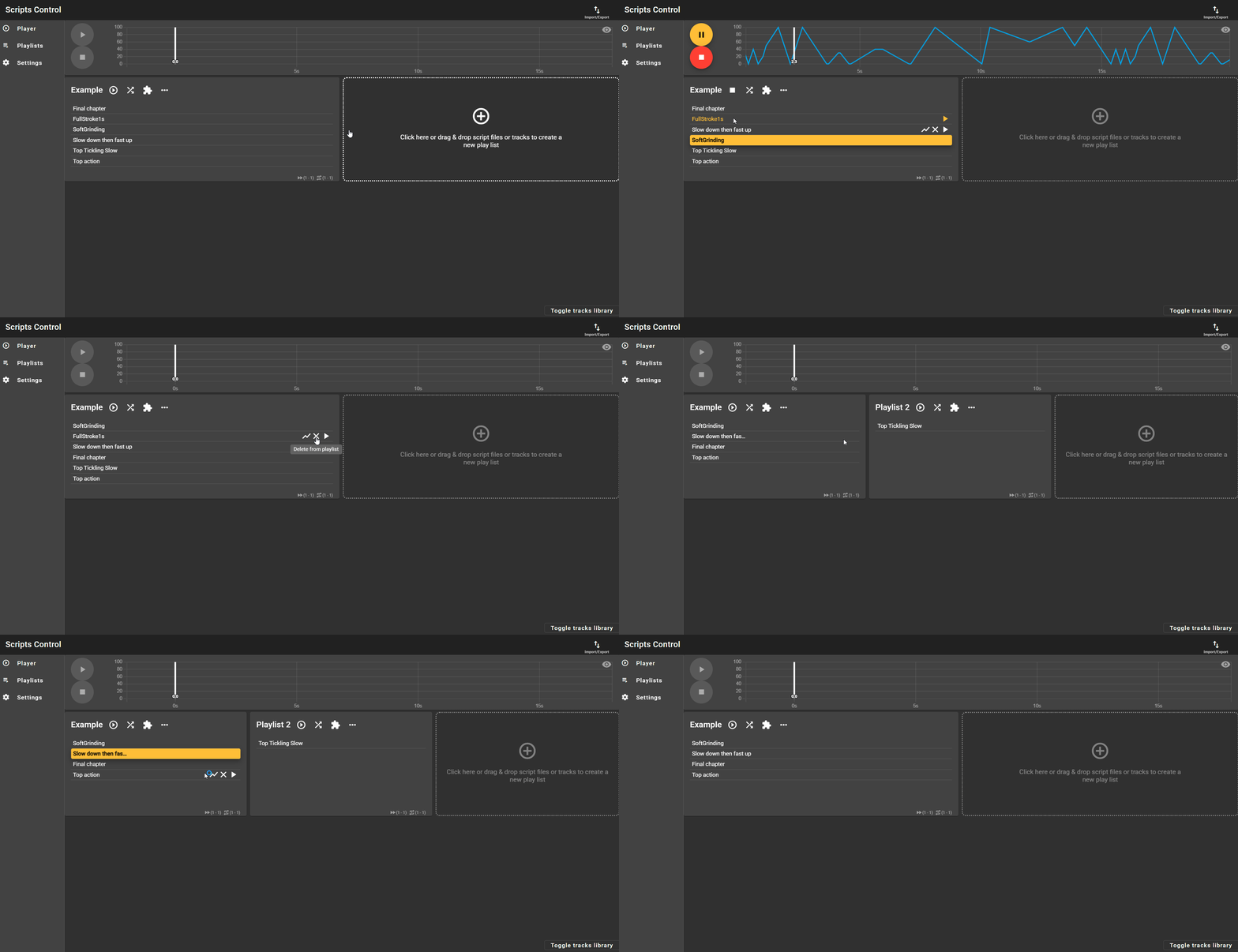
A playlist will play all the tracks it contains in order or shuffle mode. The order of the tracks can be changed by drag and drop:
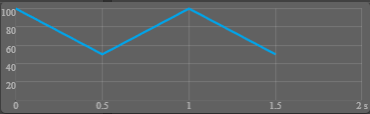
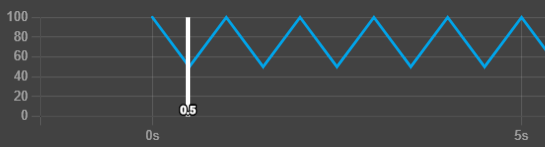
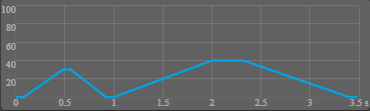
A smooth transition is added between tracks when needed:
| Current track | Next track | Result |
|---|---|---|
 |
|
 |
|
 |
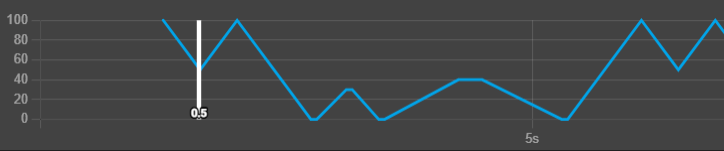 |
Transition is set to a maximum duration of 1 second. It means that going from position 0 to 100 will take 1s, but going from 50 to 100 will only take 0.5s. Going from the same value will result in a seamless transition.
If you want better control of transitions between tracks, the only option for now is to manage your tracks so that they start and end at the same position. In that way, no transitions will be applied.
Create a playlist
Simply click on the new playlist area to import a script file. Or drop a track from the library.
Options
The menu options allow you to:
- Rename the playlist
- Import script files and add tracks to this playlist
- Set up the keybinding
The shuffle mode will make the playlist read tracks in random order.
Note that this mode will never play the same track in a row if there are more than 2 tracks to read.
Extensions
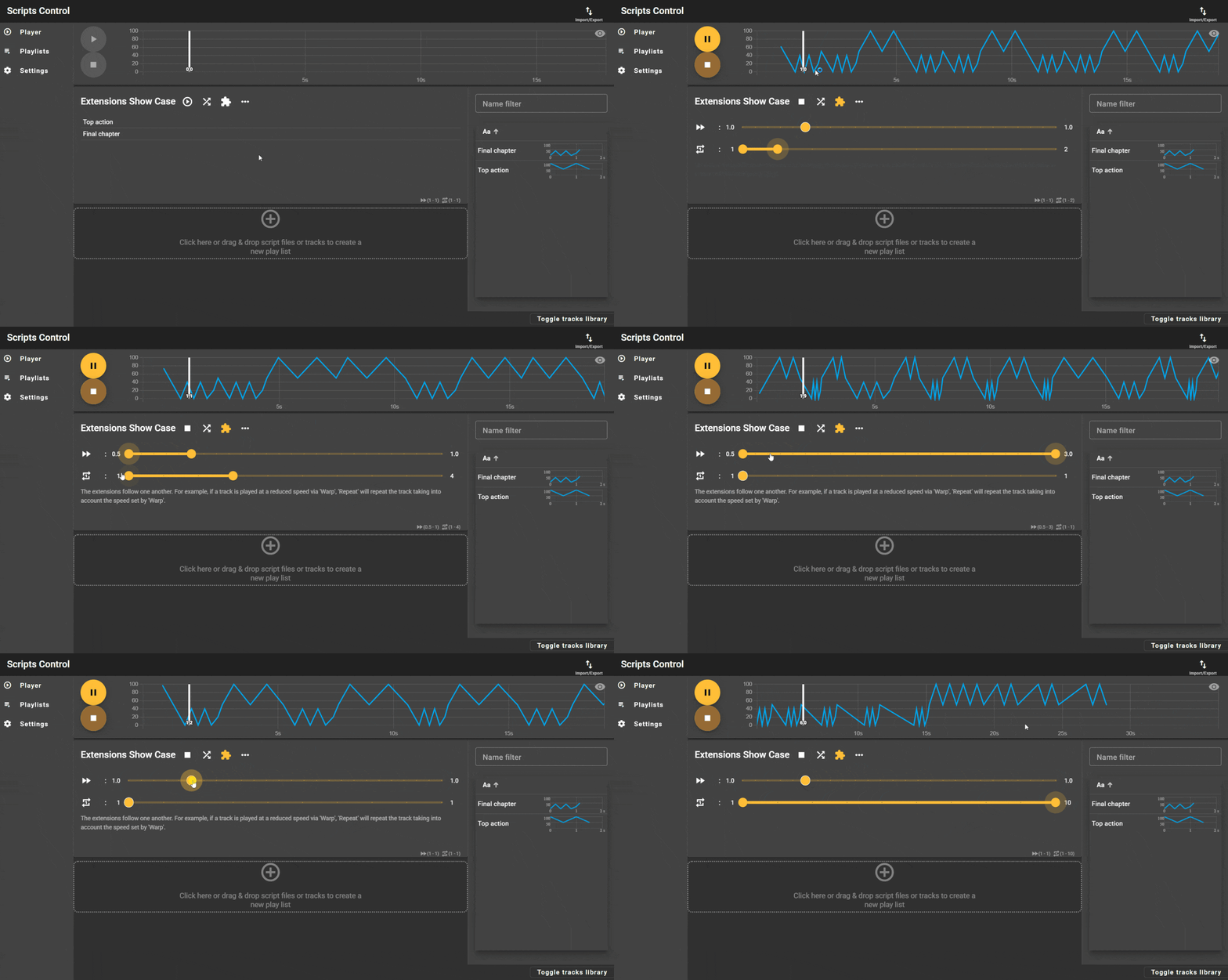
Extensions allow you to apply modifications to tracks before they are sent to the reading buffer.
Every time the playlist picks up the next track to read, the extensions will be set based on the value.
The extensions follow one another. For example, if a track is played at a reduced speed via ‘Warp’, ‘Repeat’ will repeat the track, taking into account the speed set by ‘Warp’.
Example:
Warp
Change the reading speed randomly between the minimum and maximum.
Repeat
The track will be repeated randomly between the minimum and maximum.
Keybindings
Shortcuts are used from the Player to switch between playlists.
Press the keyboard shortcut associated with a playlist to start playing it.
If the playlist is already playing, pressing its shortcut again will pause playback.
If playback is paused, pressing the shortcut will resume playback.
If a video is loaded, pausing the playlist will also pause the video. Resuming the playlist playback will resume the video playback as well.
Keybindings can be set by the playlist menu or by the settings page.
Other Settings
Player buffering size
When a track reaches its last ten seconds of playback, Script Control switches to a prepared buffer so playback stays smooth. You can tweak the buffer size between 1 minute and 24 hours in the settings panel; higher values may impact performance. This buffer is skipped for tracks synchronised with external media.
Amplitude control
Tweak the intensity of every movement in real time directly from the Player (and the Controller window).
The amplitude slider scales the difference between the current command and the next one:
0%→ the device stays still (flat line).100%→ original script amplitude.>100%→ amplified strokes, keeping timestamps intact.
Changes are applied instantly while you drag the slider and are mirrored on the controller UI.
The chart overlays the adjusted (played) track on top of the original so you can see the impact before it reaches the device.

Slow segments override
Flip the Slow Segments toggle to add life to gentle slopes. The panel collapses into a compact summary but expands on demand to expose:
Detection (%/s): threshold that defines when a slope is considered “slow”. Lower values capture more segments; higher values limit the effect to very flat portions.Frequency (Hz): how often steps or oscillations are injected (1-5 Hz).Strength (%): amplitude of oscillation (only for theOscillationmode, 1-10 %).
The effect respects playback speed. For example, slowing playback to 0.1x multiplies the number of injected oscillations proportionally, while speeding up reduces them.
Player
When everything is set up and it’s time for the show, go to the Player page and enjoy.
The player allows you to play a local video with an optional sync script.
The main chart displays the currently played track(s) and can be controlled by:
- Panning by clicking and dragging left/right or through the seek bar.
- Zooming via scroll up/down.
- Changing the current playback position by simply clicking on the chart.
- Resetting everything with the top right button.
You can also turn off chart visibility with the top right button if you find the chart distracting.
Note that changing the current playback position will also change the playback video.

Track Editor
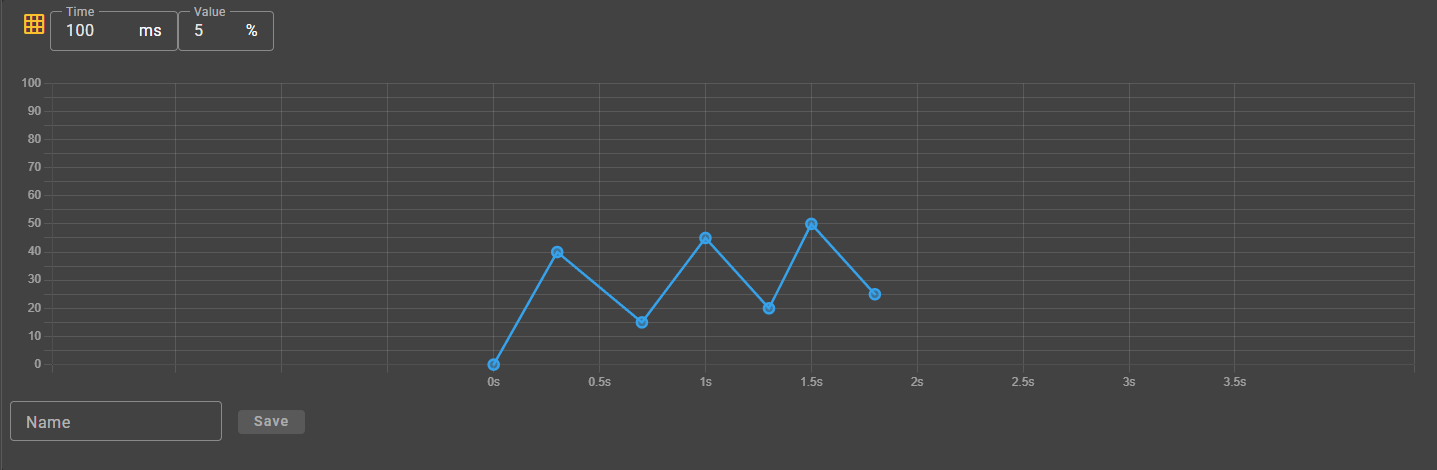
The Track Editor allows you to create and fine-tune patterns directly on a timeline.
You can add, move, or delete points, zoom and pan the view, and optionally snap points to a grid for precise editing.
This feature is still work in progress, but already provides a powerful way to make adjustments to existing tracks or design new ones.
Basic actions
- Add a point → click anywhere on the chart.
- Move a point → drag and drop it (snaps to grid if enabled).
- Delete a point → double-click the point.
- Pan → click and drag on the background.
- Zoom → scroll with the mouse wheel.
- Reset view → restore the default zoom/pan range.
Tip: if your first point is placed before
t=0, the chart will automatically pan so that zero aligns with your click.
Snapping to grid
You can enable Snap to Grid in the editor toolbar:
- Snap X (ms): step for time axis (e.g. 100 → 0.1s intervals).
- Snap Y (%): step for position axis (e.g. 5 → increments of 0.05).
When enabled, new or dragged points will automatically align with the nearest grid intersection.
Tooltips & values
Hovering over a point shows:
- Time in a compact format:
1.2s - Position as a percentage (0–100%).
Current limitations
- Multi-selection, copy/paste are not implemented.
- No support for segment easing curves (direct point editing only).
Best practices
- Keep a minimum of 100–150ms between points for smoother device motion.
- Use Snap to draft structure, then disable it for fine-tuning.
Export / import (save your config for next use or sharing :heart:)
As the application does not save any data to the server, data will be stored in your browser’s cache and will be restored at your next visit.
But if you want multiple presets or share your content, you can use the export function from the top right menu to save your tracks and playlists (with configurations) into a .scriptscontrol file that you can import later.
:warning::warning::warning: Importing a .scriptscontrol file will erase all the current data!
If you want a quick play, you can download this file that contain datas used for this readme Example.scritpscontrol